
APO (AI-Policy Optimizer) is a local, offline tool for FortiGate firewall policy analysis. It runs as a single EXE file with no installation required, opens automatically in your browser, and works in air-gapped environments where no external connectivity is permitted.
Policy Analysis ? Parse and Filter Your Entire Policy Table
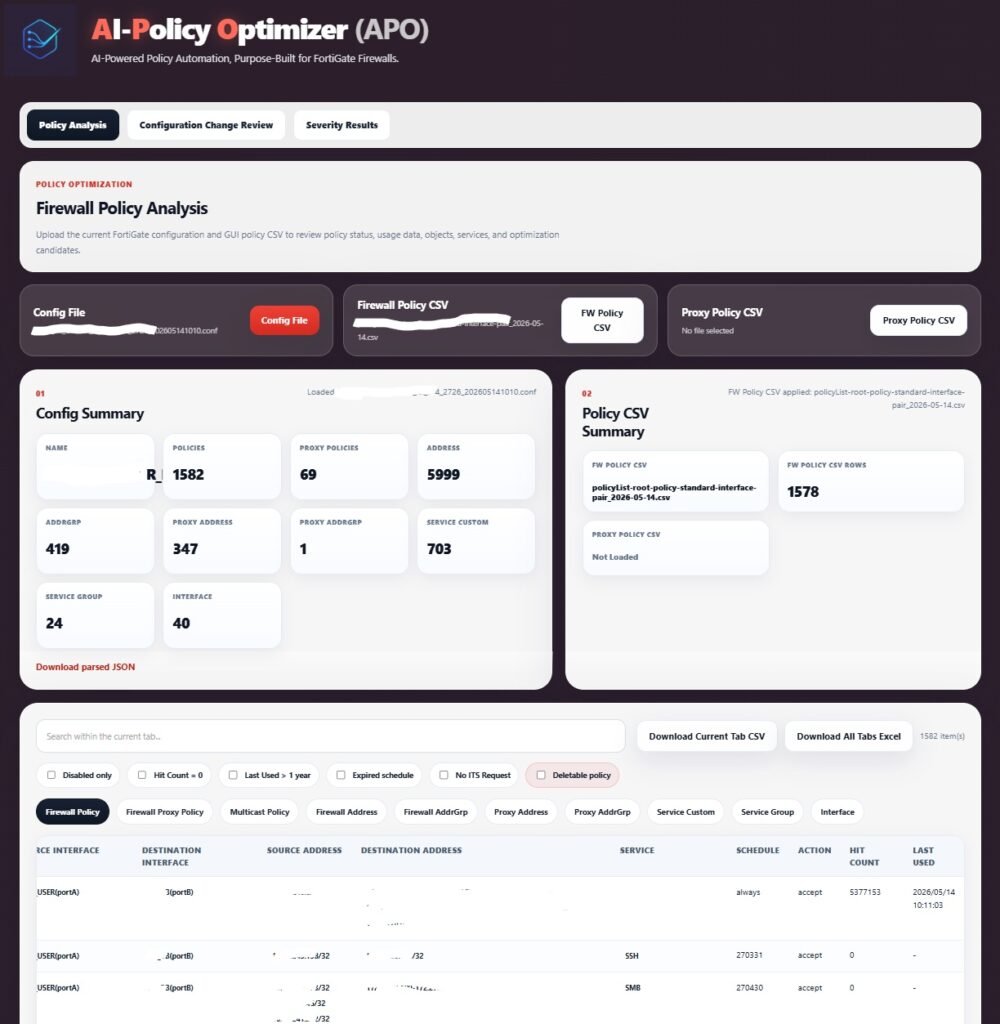
Upload your FortiGate configuration file and APO automatically parses ten configuration sections in a single pass. The result is a structured, filterable policy table that surfaces the entries most likely to need attention.
Parsed configuration sections:
- Firewall Policy, Proxy Policy, Multicast Policy
- Firewall Address, Address Group, Proxy Address, Proxy Address Group
- Service Custom, Service Group, Interface
CSV upload support: Import Firewall Policy CSV and Proxy Policy CSV separately. Hit Count, Last Used date, and Status columns are automatically applied to the parsed policy list.
Policy name auto-parsing: APO reads the naming convention YYMMDD_RITMxxxxxxx_requester and extracts the registration date, RITM ticket number, and requesting engineer automatically ? no manual input required.
Six built-in filters:
Export: Full table to Excel or current filtered view to CSV. Export requires a one-time license purchase.
Configuration Change Review ? Before and After, Side by Side
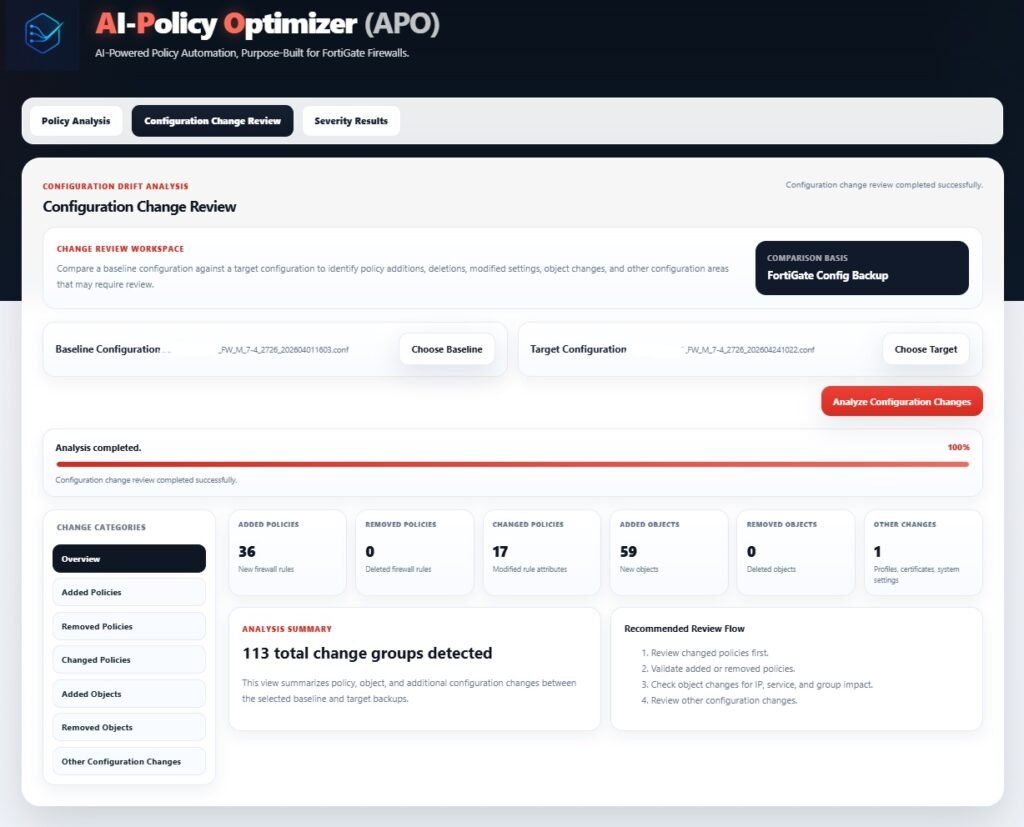
Upload two FortiGate configuration files ? a baseline and a target ? and APO generates a categorized diff that shows exactly what changed between them. This is the module I use before every change window and after every emergency modification.
What I didn’t expect was how useful this became for onboarding. New team members who had no context on a firewall could upload the config from six months ago alongside the current one and understand what had been added, removed, or modified without reading thousands of lines of raw config.
Change categories:
- Added / Removed / Changed Policies ? policy-level additions, deletions, and field modifications
- Added / Removed Objects ? address and service object changes
- Other Configuration Changes ? changes outside policy sections
Changed policy detail: For each modified policy, APO displays a field-by-field Before/After comparison. A visual progress bar tracks parsing progress on large configuration files. No export is needed ? results are displayed directly in the browser.
# Typical workflow
# 1. Export baseline config (pre-change)
# 2. Export target config (post-change or candidate)
# 3. Upload both to Configuration Change Review tab
# 4. Review categorized diff before submitting change record
Policy Analysis Filter Conditions & Severity Classification Criteria
Policy Analysis — Filter Conditions
| Filter | Condition | Requires Policy CSV | Requires User IP Ranges |
|---|---|---|---|
| Disabled | Policy status = disabled | No | No |
| No Hit Count | Hit count = 0 (no traffic recorded) | Yes | No |
| Last Used > 1yr | Hit count > 0, but last used date is over 1 year ago | Yes | No |
| Expired Schedule | Schedule field is a past date (YYMMDD format) | No | No |
| No ITS Request | Policy name contains no change ticket reference (e.g., RITM), or policy name is empty | No | No |
| Deletable | Disabled OR Expired Schedule | No | No |
Severity Results — Classification Criteria
| Level | Action | Key Conditions | CSV | IP Ranges |
|---|---|---|---|---|
| 1 — Critical | Disable immediately | Any/All on source + destination + service / Risky protocols (FTP, Telnet, TFTP, etc.) / Temporary rule with no change ticket and no traffic | Partial | Partial |
| 2 — High | Delete | Disabled policy / Expired schedule / Hit=0 + Accept + registered ≥ 1yr | Yes | Yes |
| 3 — Medium (S-U) | Review required | User-Server traffic + registered > 1yr + hit count below expected threshold + Last Used ≥ 1yr | Yes | Yes |
| 4 — Medium (S-S) | Review required | Server-Server traffic + registered > 2yr + hit count < 50 | Yes | Yes |
| 5 — Low (S-U) | Request change ticket | User-Server traffic + registered < 1yr + no change ticket reference | Yes | Yes |
| 6 — Low (S-S) | Request change ticket | Infrastructure services (AD, DNS, LDAP) with active hits / Known management or infrastructure objects | Yes | Yes |
| 7 — Keep | Keep | Deny action / ICMP-only service / Valid change ticket + valid schedule / Explicitly marked as controlled | No | No |
| 0 — Unknown | Cannot assess | User IP ranges not configured — traffic direction cannot be determined | — | No |
Note: Severity 1 and 6 conditions can be customized per customer environment. Object-level rules (e.g., specific user-segment pools, management subnets) are defined in the tool configuration and do not affect the core classification logic. Policy Analysis filters operate independently on single conditions without requiring IP ranges. Severity Results use a composite scoring engine requiring Policy CSV (hit count, last-used data) and User IP ranges (to classify Server-User vs Server-Server traffic) for full accuracy.
Severity Results ? NIST-Based Risk Classification for Every Policy
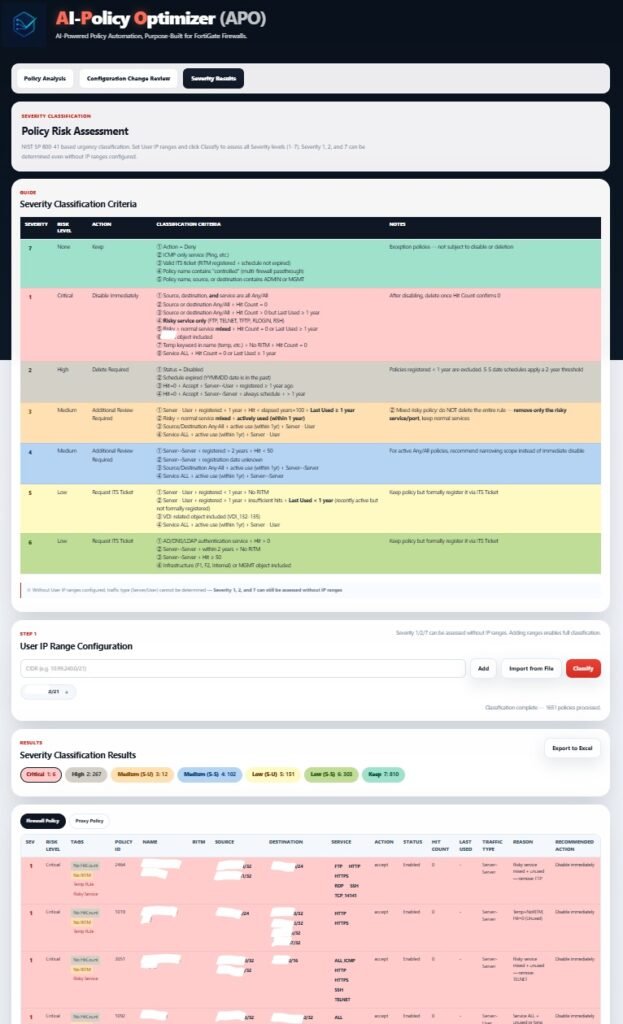
The Severity Results module applies NIST SP 800-41 guidelines to classify every policy in your table into one of seven severity levels. The classification runs locally against the parsed policy data ? no data leaves the machine.
I built the workflow around this module after an audit finding. We had policies with Hit Count = 0 and no associated tickets that had been sitting active for three years. The auditor asked why they existed. We didn’t have a good answer. Severity Results now gives us that answer before the auditor asks.
User IP range setup:
- Enter CIDR notation directly in the interface (e.g., 192.168.0.0/16, 10.0.0.0/8)
- Import from a .txt file for environments with multiple ranges
- Severity 1, 2, and 7 are determined without IP range input
Severity classification table:
The classification table is always visible on screen ? no collapsing, no pagination. Results export to Excel with severity-coded color bands per row. Severity 1 and 2 findings are highlighted automatically for immediate attention.
Run APO in Five Steps
- Download APO.exe and extract the archive
- Run APO.exe ? no installation required; your default browser opens automatically
- Policy Analysis tab ? upload your FortiGate config file and optionally your policy CSV files; apply filters to identify candidates
- Configuration Change Review tab ? upload baseline and target configs to generate a categorized change diff
- Severity Results tab ? enter your User IP ranges, run classification, and export the results to Excel
Why Offline Processing Matters for Security Infrastructure
Firewall configuration files contain your full network topology ? policy rules, address objects, service definitions, and interface names. Uploading that data to a cloud service is a decision that should require explicit authorization from your security team and possibly your compliance team.
APO processes everything locally. The application runs in your browser against files on your local machine. Nothing is transmitted.
- Fully offline ? no internet connection required after download
- Air-gap compatible ? runs in isolated networks with no external access
- Local data processing ? no config data leaves your machine
- Export (Excel / CSV) and Download features require a one-time license purchase ? an internet connection is required to complete the license purchase
- Analysis and viewing are always free with no license required
- Supported on Windows 10 and Windows 11
Analysis and viewing are free
Export & Download require a license purchase
License purchase requires an internet connection